On the Spine click on the Administration Workspace

Then click the Correspondence button

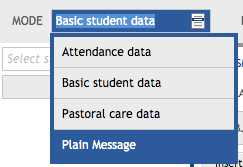
Set mode to Plain Message
Select who you want to send the email to (Students, Guardians or both)

Select the type of Correspondence - in this case Email

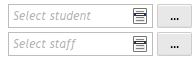
Then select the students (or students whose guardians) you wish to correspond with by clicking the three dots next to the Select student dropdown 
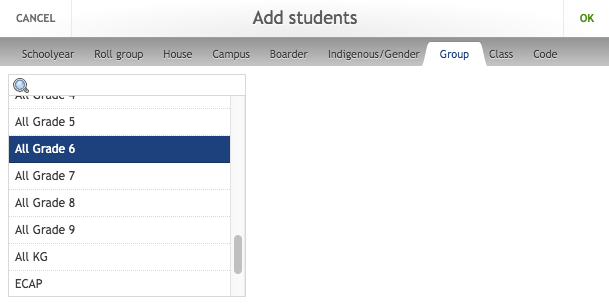
In the "Add students" popup select the Group tab
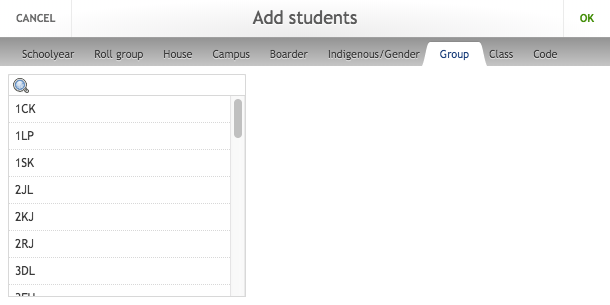
Then scroll down and select the year group that you wish to correspond with and select OK
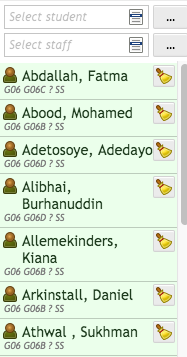
The students will be added to the student list on the left hand side
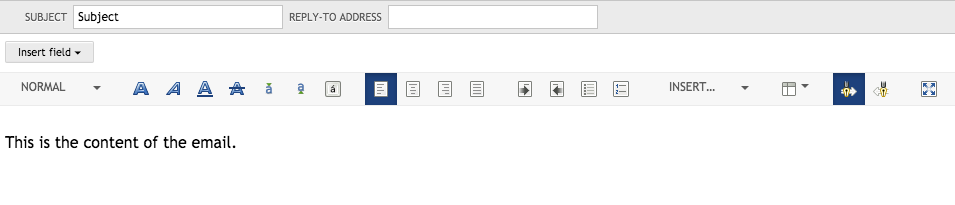
Add the subject and the content of the email:
You can Preview your message by clicking the Preview button 
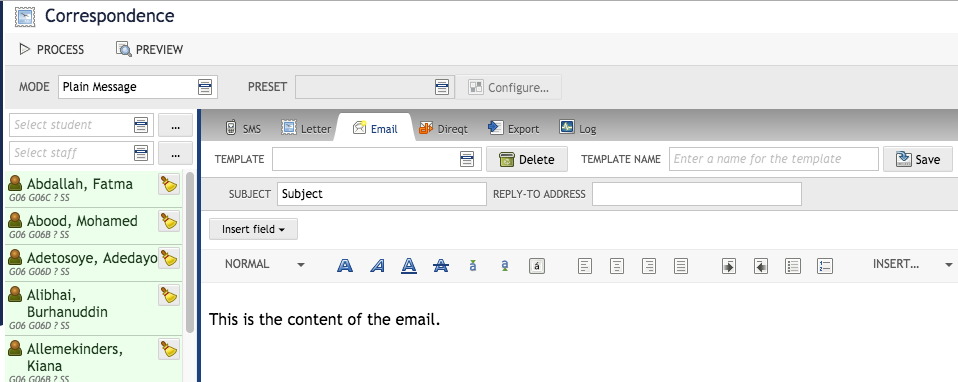
Then you can send the message by clicking the Process button 
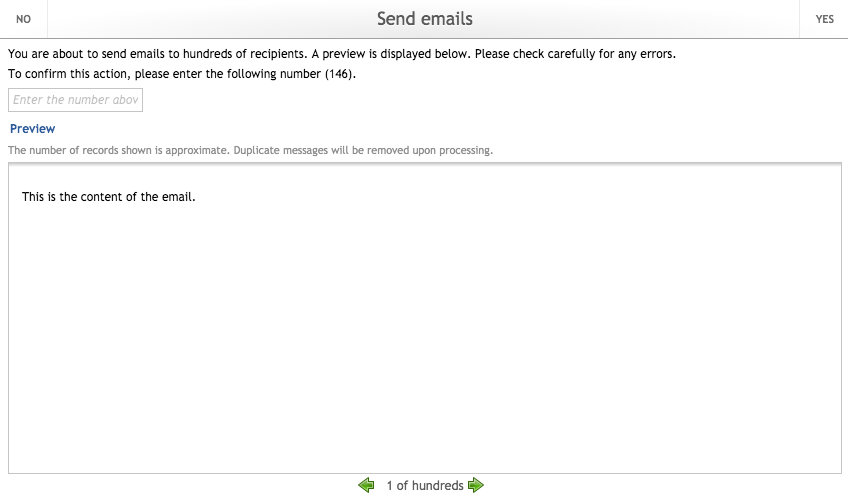
You will then be asked to check the email and enter a number (the total number of recipients) and then click YES to send the email